

AI assistant connector
Your CRM, inside the assistant you already pay for.
Connect Claude or ChatGPT to Empiraa Signal and ask it about your pipeline in the window you already have open. It can also change things, and that is the part worth reading carefully: every change is previewed before it saves, most can be undone for seven days, and there is a short list of things it will not do at all.
Included on every Signal plan. You bring your own Claude or ChatGPT subscription.
- 14 days free
- No credit card
- Unlimited users
The problem
Connecting an assistant to a CRM usually goes one of three ways.
All three are why most people tried it once and went back to copying and pasting.
Why it usually disappoints
It can look but not touch
It answers questions about your pipeline and then you go and do the work by hand anyway. Useful for about a week, which is roughly how long people keep it connected.
Or it does things you find out about later
Fields rewritten, records created, something sent. The problem is not that it acted. The problem is that you could not see what it was about to do, or put it back.
Or it is a project
An API key to generate, somewhere safe to keep it, a developer to wire it up, and in a lot of CRMs an enterprise tier before any of that is allowed.
How it works
Sign in once. Then ask, and confirm.
MCP is the open standard AI assistants use to connect to business apps. Signal speaks it, so this is a sign-in rather than a build.
Connect, ask, change
Two minutes, and no API key
Click Connect AI in the Signal top bar, copy the connector address, and add it in Claude or ChatGPT. You sign in to Signal the normal way and choose what the assistant may do. There is no key to generate, nowhere to keep one safe, and nothing for a developer to wire up.
- Claude and ChatGPT at launch, both showing Signal’s verified badge on the approval screen
- Also any assistant that speaks MCP, including Claude Code, Cursor, VS Code with Copilot and Gemini
- The connection is yours alone, and it sees only what your own Signal role allows
Then ask it about your own numbers
Forty-seven of the fifty-one tools exist to look things up: deals, accounts, contacts, prospects, activities, your call queue, campaigns, segments, scores, attribution, website visits, saved reports and your KPIs. It reads your actual records, so the answer is your pipeline rather than a plausible-sounding one.
- Nine ready-made prompts, including a morning brief built from your own work
- Three suggested first questions, written from what you have been doing in Signal
- Anything written by a person, or arriving from an email or a web page, reaches the assistant marked as untrusted, so instructions hidden in a record are not followed
And let it change things, one confirmation at a time
Ask it to move a deal, log a call, reassign a hundred accounts or import a list, and Signal itself draws a card showing exactly what is about to change. Nothing is saved until you confirm, the confirmation works once, and it expires after fifteen minutes. Afterwards you get a receipt with an undo on it.
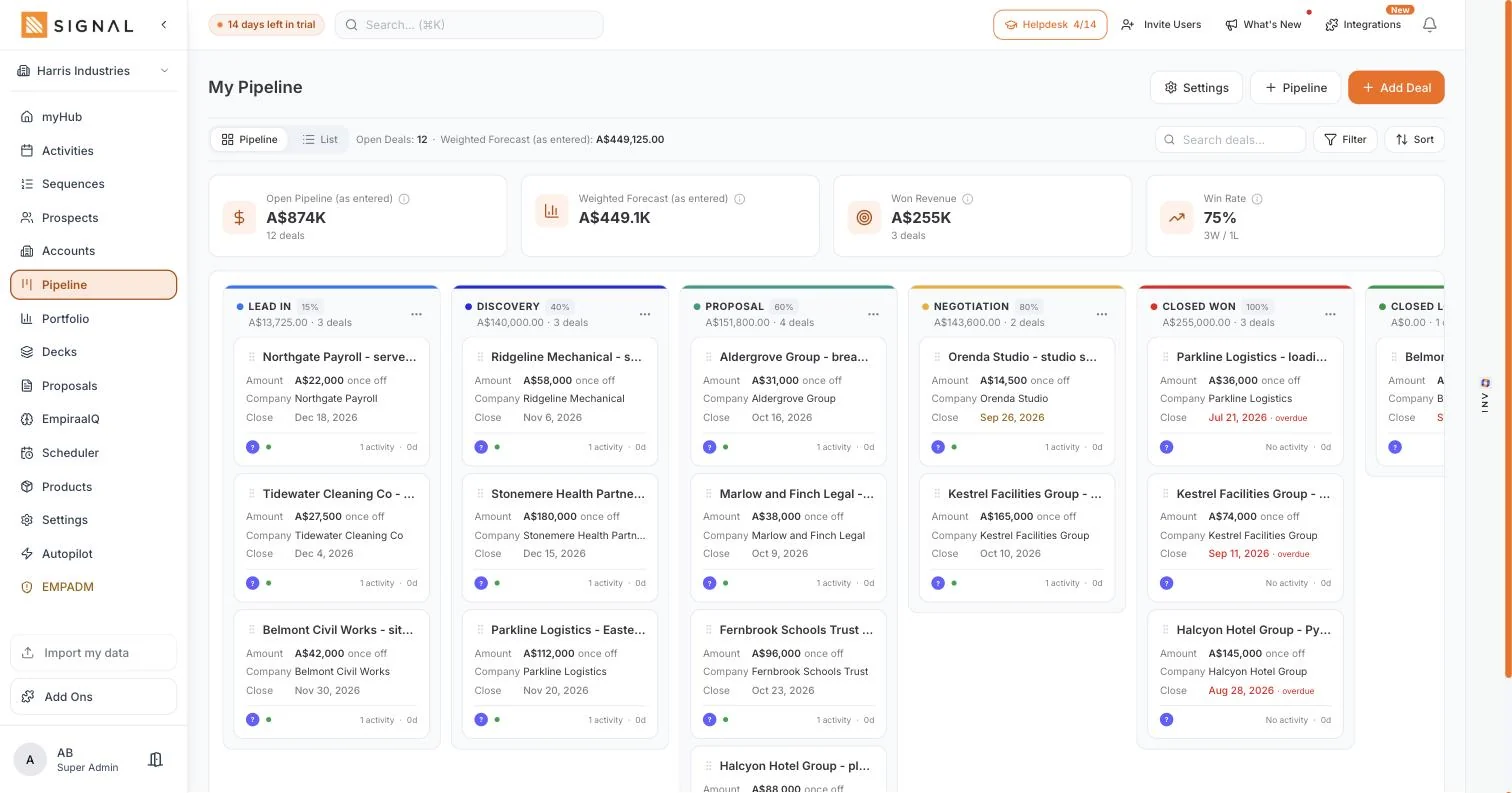
- Fifty-one kinds of change, forty-six of them undoable for seven days
- The five that cannot be undone say so before you agree, not after
- Every change is logged in Settings with the app it came from
Every plan has every feature. The difference between them is volume.
Explore Signal freeWhat you get
The whole connector, on every plan.
Not an add-on, not a credit pack and not the enterprise tier. You bring your own Claude or ChatGPT subscription and Signal brings the rest.
Included
Fifty-one tools
Forty-seven for looking things up, four for making a change: preview it, apply it, undo it, and list what can be changed at all.
Fifty-one kinds of change
Twenty-five across sales, fourteen in marketing, seven in analytics and five for importing. Each one previewed before it saves.
Forty-six of them undoable
For seven days, from the chat or from Settings. The other five say up front that they cannot be, before you agree to them.
Nine ready-made prompts
Your morning brief, a pipeline review, a campaign debrief and six more, waiting in the assistant rather than in a document.
Nine in-chat panels
Your pipeline as a board, a chart in your own colours, a change you can confirm. Drawn inside the conversation where the host supports it.
Four areas you grant
Sales, marketing, analytics and importing, each one separately. View only, or view and make changes.
Eight reference sets
Your pipelines, your segment fields, your brand kit, the attribution models and more, so it answers in your own setup rather than a generic one.
On every plan
Not an add-on and not the top tier. You bring your own Claude or ChatGPT subscription.
Getting connected
Four steps, and the longest one is reading the screen.
How to start
- In Signal
Click Connect AI
It is in the Signal top bar in every workspace, or under Settings, Integrations, AI assistants.
- One paste
Add it to your assistant
In Claude, Settings then Connectors. In ChatGPT, developer mode, then create an app.
- Your call
Choose what it may do
View only, or view and make changes, and which of the four areas. Approve.
- First question
Start with the morning brief
The quickest way to see whether the answers match your workspace is to ask it about today.
Start it on view only.
Read what it tells you about your own pipeline for a week before you let it change anything. Moving a connection up to making changes needs a fresh approval from you, so it cannot quietly gain write access in the meantime.
What it will not do
The list that matters more than the feature list.
These are not settings you have to find and switch on. They are things the connector cannot do at all, on any plan, with every permission granted.
Six hard limits
It never emails your customers
It drafts emails, sequences and campaigns. The only message it can actually send is a test to your own address, and no more than twenty of those a day.
It never deletes your records
The only thing it can remove is something it created itself, and only while nobody else has touched it.
It never touches marketing consent
Who has agreed to hear from you is not something an assistant gets to record or change. That stays a person in Signal.
It never publishes or starts anything
Forms stay drafts. Drip and nurture sequences stay stopped. A person publishes them, in the app, on purpose.
Workflows it builds message your team
A workflow that emails customers is set up by a person. The assistant can turn a workflow on once you confirm, and that is as far as it goes.
It never quietly spends your allowance
A prospect search costs you part of the week’s allowance, so it says so and asks first rather than running and telling you after.
The reasoning is the same one behind Autopilot. Anything that reaches a customer, or that you cannot put back, needs a person.
Ready-made prompts
Nine starting points, waiting in your assistant.
Picked from a menu rather than typed from memory, and each one runs on your own workspace. Six of the nine are below.
Pick one and go
My morning brief
What to do first, what is overdue, the deals at risk, your call queue and today’s bookings, read out of your own records.
Review the week’s pipeline
Open deals by stage, what is closing soon, what has gone past its close date, what was won and lost, and the follow-ups nobody did.
Fill my call queue
From your hot prospects, a segment, a search or the deals going quiet, skipping anyone already waiting in it.
Import a prospect list
A spreadsheet, a file in the chat or another CRM’s export, brought in the way the CSV import does it, up to five hundred rows at a time.
Debrief a campaign
What a campaign did, email by email, and the pipeline and revenue behind it under each attribution model.
Build a workflow
Described in your own words, drafted from the triggers and actions Signal actually has, and turned on only if you say so.
For whoever owns the workspace
Six controls, and an off switch that works immediately.
Set at the workspace, above anything an individual chooses for their own connection.
Admin controls
| Control | What it does |
|---|---|
| Workspace access | Off, view only, or full. Switching it off ends every assistant connection in the workspace straight away. |
| Which apps are allowed | Every app, or only the ones you name. Claude, ChatGPT, Copilot, Cursor, Gemini or others. |
| Contact details | Hide email addresses and phone numbers from assistants entirely, while everything else still answers. |
| Call recordings | Off by default. Recordings and transcripts are only readable by an assistant if you turn that on. |
| Who has connected what | Every member’s connections, by app, in one list, and you can disconnect any of them. |
| What it actually did | Every change an assistant made, in Settings, with the app it came from and an undo where one applies. |
Signing in uses OAuth with short-lived tokens, and access ends on disconnect or a password change. Anyone can disconnect their own app at any time.
By role
What it changes, seat by seat.
Who feels it
A sales rep
Your day, your call list and your follow-ups in the window you already have open, and the admin done by asking rather than clicking.
Learn moreA sales manager
Pipeline questions answered against the records instead of a spreadsheet somebody rebuilt on Monday morning.
Learn moreA CEO or owner
You can say exactly what an assistant may touch, see everything it has done, and switch the whole thing off in one click.
Learn moreA founder
The leverage of a bigger team without a developer, an API key or a second subscription to justify.
Learn moreRelated
Keep exploring Signal.
Related pages

Questions
Connector questions, answered.
What is MCP?
MCP is the open standard AI assistants use to connect to business apps. Signal publishes an MCP connector, so an assistant that speaks the standard can work with your workspace without anybody building an integration for it.
Does it cost extra?
No. The connector is included on every Signal plan, the same as every other part of the app. You need your own Claude or ChatGPT subscription, which is between you and them. See the plans.
Can it change my data?
Only if you grant that, and only one confirmation at a time. Signal draws the preview itself, showing exactly what will change, and nothing saves until you confirm. Forty-six of the fifty-one kinds of change can be undone for seven days, and the five that cannot say so before you agree.
Can it email my customers?
No. It drafts emails, sequences and campaigns, and the only message it can send is a test to your own address, capped at twenty a day. Publishing a form, starting a sequence and sending a campaign all stay with a person in Signal.
What stops someone hiding an instruction in a record?
Anything a person wrote, and anything arriving from an email, a form or a web page, reaches the assistant marked as untrusted data rather than as instructions. The connector was tested against exactly this: instructions planted in notes, emails, form submissions, imported files and web pages.
Who can see what, once it is connected?
Each connection belongs to one person and sees only what that person’s Signal role already allows. It is not a second set of permissions to maintain, and connecting an assistant never widens what somebody can reach.
Can an administrator turn it off for everyone?
Yes, immediately. Workspace access has three settings, off, view only and full, and switching to off ends every assistant connection in the workspace straight away. An administrator can also limit which apps are allowed and hide contact details from assistants entirely.
How is this different from ANI?
ANI is Empiraa’s own assistant, built into Signal and included on every plan, and it is where most people start. The connector is the other direction: your own Claude or ChatGPT reaching into Signal, so your CRM is in the same conversation as everything else you use it for. More on ANI in Signal.

Something else? Ask ANI and get a straight answer.
Put your pipeline in the window you already have open.
Included on every plan. 14 days free. No credit card. Unlimited users from the first minute.